Introduction: The Future of Automated Trading in 2026
As we navigate the fast-paced financial landscape of 2026, automated trading has transitioned from a niche luxury to a fundamental tool for retail traders. At the forefront of this revolution is DBot, Deriv’s premier automated trading platform. Designed to bridge the gap between complex coding and user-friendly visual logic, DBot allows traders to build, backtest, and deploy trading robots without writing a single line of traditional code. While the platform is browser-based, users on Windows 11 often seek a more integrated, “installed” experience to maximize performance, stability, and ease of access.
In this extensive guide, we will walk you through exactly how to install DBot on Windows 11, leveraging modern features like Progressive Web Apps (PWA) and system-level optimizations that make Windows 11 the ideal environment for algorithmic trading. Whether you are a seasoned quant or a beginner looking to automate your first Martingale strategy, this tutorial covers every detail you need to get up and running securely.
Understanding DBot and the Deriv Ecosystem
Before diving into the installation process, it is crucial to understand what DBot is. Unlike MetaTrader 4 (MT4) or MetaTrader 5 (MT5), which require the installation of .exe files and complex MQL coding, DBot operates on the Blockly framework. This is a visual programming language that uses interlocking blocks to represent logical sequences, such as “If price moves up by X, then buy Y.”
By 2026, Deriv has integrated even more advanced APIs into DBot, allowing for real-time data processing and faster execution speeds. Running this on Windows 11 provides a significant advantage because of the OS’s superior memory management and native support for web-based applications that function like desktop software.
Prerequisites for Running DBot on Windows 11
To ensure a smooth installation and operation, your Windows 11 machine should meet the following requirements:
- Operating System: Windows 11 (Build 22000 or higher) with the latest cumulative updates.
- Browser: Google Chrome or Microsoft Edge (Chromium-based browsers are mandatory for the PWA installation).
- Hardware: At least 8GB of RAM (16GB recommended for running multiple bot tabs) and a stable SSD.
- Internet Connection: A low-latency connection (Fiber/5G) is essential, as milliseconds can make the difference in trade execution.
- Deriv Account: You need a verified account to trade on the live market, though a demo account is sufficient for setup and testing.
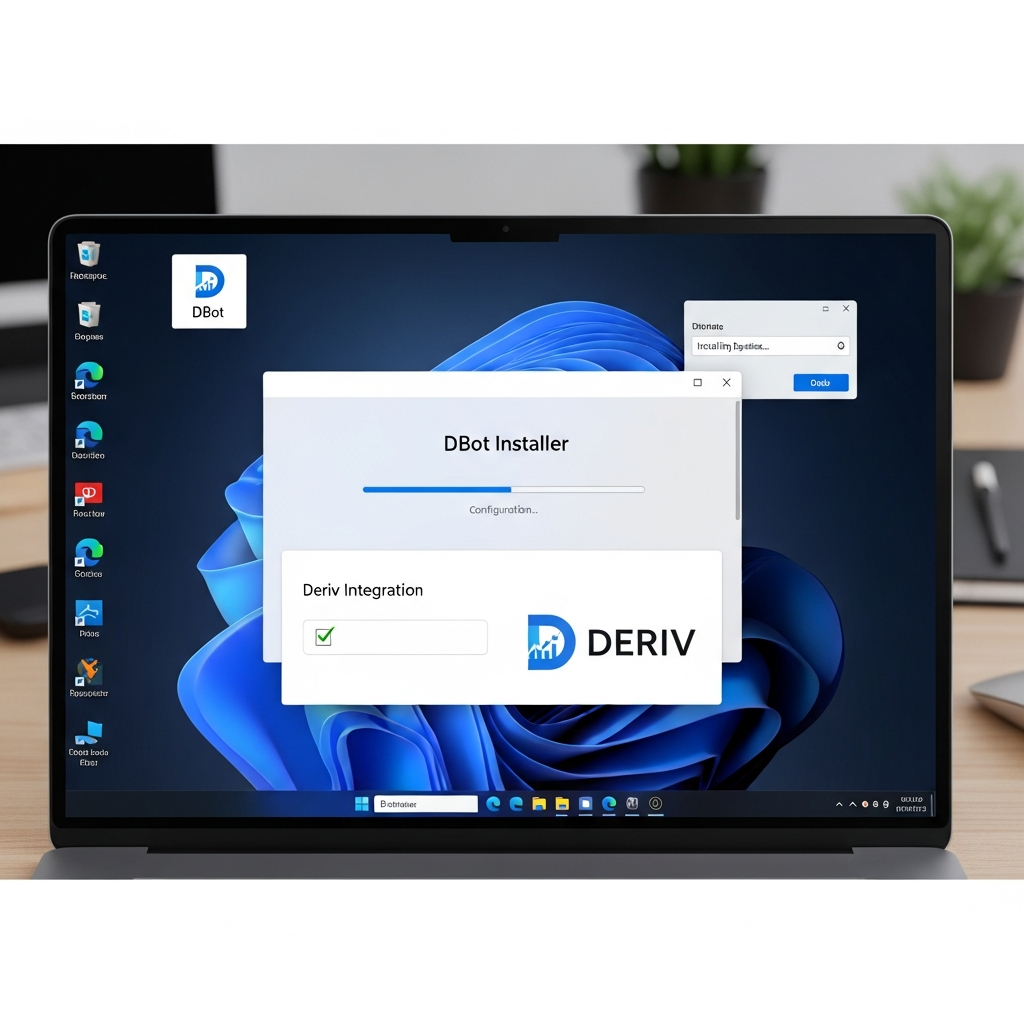
Step-by-Step Guide: How to Install DBot on Windows 11
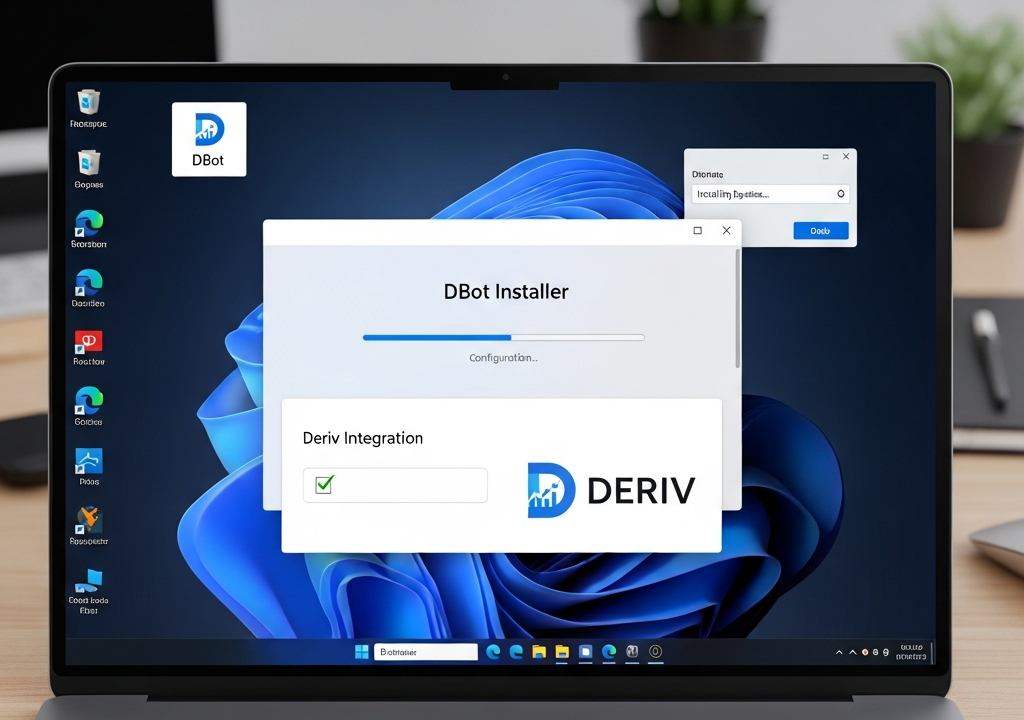
While DBot does not have a traditional “setup.exe” file, the most efficient way to “install” it on Windows 11 is by using PWA (Progressive Web App) technology. This creates a dedicated application window, a taskbar icon, and a desktop shortcut, providing a native software feel while maintaining the cloud-sync benefits of the web platform.
Step 1: Access the Deriv DBot Platform
Open your preferred Chromium-based browser (we recommend Microsoft Edge for the best Windows 11 integration). Navigate to the official Deriv website and log in to your account. From the platform switcher menu (usually located at the top left or center), select DBot. This will take you to the main workspace where the Blockly interface is visible.
Step 2: Installing as a Progressive Web App (PWA)
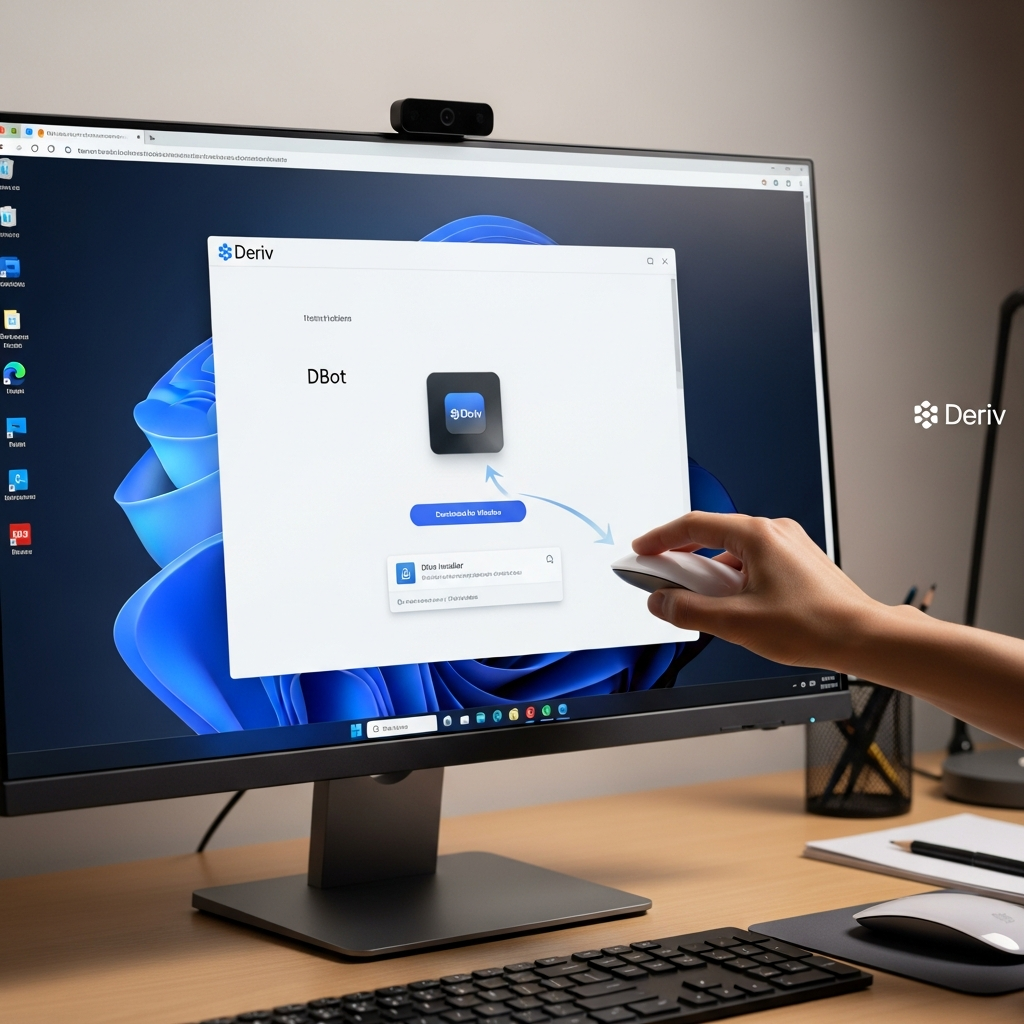
Once the DBot dashboard has fully loaded, look at your browser’s address bar. On Microsoft Edge, you will see an icon that looks like three squares and a plus sign, labeled “App available. Install DBot.” On Google Chrome, you will see a similar “Install” icon or you can find it under the three-dot menu > Save and Share > Install page as app.
Click Install. Windows 11 will now treat DBot as a standalone application. You will be prompted to pin the app to your Taskbar and Start Menu. Do this. Having DBot pinned to the taskbar allows you to launch your trading environment instantly without navigating through browser bookmarks.
Step 3: Configuring Windows 11 Performance Settings
To ensure your bot doesn’t lag during high-volatility events, you should optimize Windows 11 for the application:
- Go to Settings > System > Power & battery. Set the Power mode to Best performance.
- Open Settings > System > Display > Graphics. Locate the browser you used to install DBot (e.g., Edge) and set it to High performance.
- Disable “Efficiency Mode” in the browser for the DBot app to prevent Windows from putting the process to sleep while the bot is running in the background.
Navigating the DBot Interface on Windows 11
Now that you have “installed” the app, let’s look at the workspace. The Windows 11 “Snap Layouts” feature is particularly useful here. You can snap the DBot app to one side of your screen and keep a live chart or a news feed on the other side.
The DBot interface consists of four main areas:
- The Toolbar: Where you can load, save, and reset your strategies. In 2026, this also includes cloud-sync options to save your bots directly to your Deriv profile.
- The Canvas: This is your workspace where you drag and drop blocks.
- The Block Menu: Categorized logic (Trade Parameters, Purchase, Analysis, etc.) used to build your bot.
- The Panel: A slide-out menu that shows your transaction history, journal (logs), and the summary of your current session.
Building Your First Automated Strategy
Learning how to install DBot on Windows 11 is only the beginning; the real power lies in configuration. Let’s look at a basic structure for a bot.
Defining the Trade Parameters
The first block in any DBot strategy is the “Trade Parameters” block. Here, you define the market (e.g., Volatility 100 Index), the trade type (e.g., Rise/Fall), and the contract duration. Windows 11’s high-resolution support ensures that even complex block structures remain readable and manageable.
Logic and Analysis
Within the “Purchase” block, you define the conditions. For example, using a Simple Moving Average (SMA) block: “If the current price is above the SMA 50, then purchase a Rise contract.” You can add multiple layers of logic, such as RSI filters or MACD crossovers, to refine your entry points.
Risk Management: The Most Critical Step
No bot is complete without a stop-loss and take-profit logic. You can use the “After Purchase” block to tell DBot what to do once a trade closes. If the trade was a loss, you might implement a Martingale multiplier (e.g., Stake * 2). If the total profit exceeds your target for the day, you can use the “Finish” block to stop the bot automatically.
Advantages of Using Windows 11 for DBot in 2026
Why choose Windows 11 over macOS or Linux for DBot? In 2026, the integration between the OS and web-based trading tools has reached a pinnacle. Windows 11 offers:
- Superior Driver Support: Ensures that your network adapters and peripherals operate with minimal latency.
- Focus Assist: You can set Windows 11 to “Focus” mode while your bot is running, silencing all non-critical notifications to ensure you aren’t distracted during a live trading session.
- Virtual Desktops: You can have one virtual desktop dedicated entirely to DBot instances and another for your daily work, keeping your trading environment clean and isolated.
- Windows Defender: In 2026, the built-in security is robust enough to protect your trading scripts and account credentials from malware without needing heavy third-party antivirus software that slows down the system.
Troubleshooting Common Installation Issues
Even with a straightforward process, you might encounter hurdles. Here are the most common issues when installing DBot on Windows 11 and how to fix them:
Issue 1: The “Install” Icon Doesn’t Appear
If you don’t see the PWA installation icon, ensure you are on the correct URL (bot.deriv.com) and that your browser is up to date. Sometimes, clearing the browser cache for the Deriv site will force the installation prompt to reappear.
Issue 2: Bot Freezes When Windows Goes to Sleep
By default, Windows 11 tries to save power. If you are running a bot for several hours, go to Power & Sleep settings and set the “Screen and sleep” timers to “Never” while plugged in. This ensures the JavaScript execution in the DBot app is never interrupted.
Issue 3: High Memory Usage
If you notice DBot is consuming too much RAM, it is usually due to the “Journal” tab filling up with logs. Periodically clear the journal or refine your bot’s logic to print fewer messages. In Windows 11 Task Manager, you can set the DBot process priority to “Above Normal” to ensure it gets the resources it needs.
Advanced Tips: Scaling Your DBot Setup
Once you are comfortable with a single bot, Windows 11 allows you to scale. You can run multiple instances of the DBot PWA by using different browser profiles (e.g., a “Trading” profile in Edge and a “Testing” profile in Chrome). This allows you to run a Volatility 10 Index bot and a Gold (XAU/USD) bot simultaneously without them interfering with each other’s logic.
Furthermore, consider using Windows Terminal to run background scripts that might complement your DBot, such as Python-based data scrapers or custom alert systems that hook into the Deriv API.
Conclusion: Mastering Your Trading Environment
Learning how to install DBot on Windows 11 is a transformative step for any trader looking to modernize their workflow. By moving away from a standard browser tab and into a dedicated PWA environment, you gain stability, speed, and a professional workspace that reflects the seriousness of your trading endeavors.
As we move through 2026, the line between web apps and desktop software continues to blur. DBot on Windows 11 represents the perfect marriage of cloud flexibility and local performance. Remember that while automation can significantly enhance your trading, it does not eliminate risk. Always test your strategies on a demo account, use strict risk management blocks, and keep your Windows 11 system updated to ensure the highest level of security and performance.
Your journey into automated trading is now supported by the most robust OS and the most intuitive bot builder available. Happy trading is no longer about clicking buttons manually; it’s about building systems that work for you while you sleep. Good luck, and may your blocks always lead to blue results!